Showing posts with label chrome. Show all posts

Have you ever tried to add third party addons to Google without success? Well, you can not add third party addons in Chrome like the usual way of doing it. It will simply throw an error saying “Apps, extensions and user scripts cannot be added from this website.” But that doesn’t mean you cannot do it at all. Here is how you can add thirdparty addons to Google Chrome browser.
  • Download the addon to your computer.
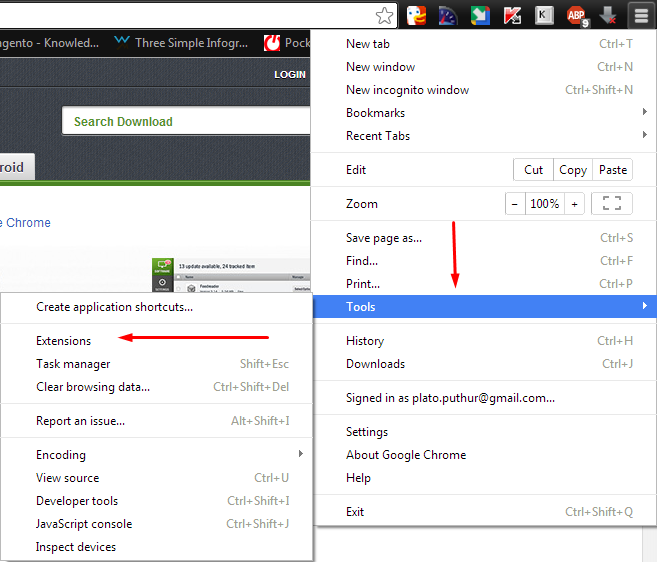
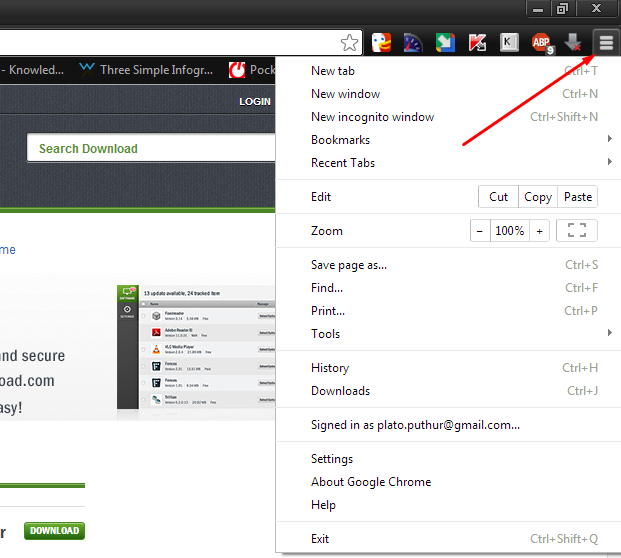
  • Click on settings Icon, select tools and then click on extensions.
3rd- party- addon- to- Google-chrome-2
  • Now drag the downloaded 3rd party addon to Google Chrome’s extensions page.
  • This will install the downloaded addon.
Hope I have helped you. If you have any doubts or suggestions please do let us know by commenting below.

Recently there has been a big increase in websites that host auto-playing video adverts, this can be incredibly annoying if you're listening to music on your computer while browsing the web. Here we show you how to stop videos and media from auto-playing when you open a web page in Chrome

Before we start, we really need to say that you should consider your actions before you disable auto-playing video, or media adverts from websites that you regularly visit, as there is a good chance that this is main source of income, and is what ultimately funds the production of the content you wish to read. So, if you disable auto-playing videos/media make sure you support your favourite website.

How to stop auto-playing ads, videos and media in Chrome


Disabling auto-play videos and media in Chrome is simple. First of all you need to type "chrome://chrome/settings/content" into the URL bar. Then all you need to do is scroll down to the plug-in section, and select 'Let me choose when to run plugin content'.Then click Finished.


Chrome Remote Desktop is the best & safe screen sharing and remote desktop access facilities to your Google Chrome browser. Once the add-on is installed, you’ll be able to easily access other computers or allow another user access your computer securely over the Internet.

To use Chrome Remote Desktop, the add-on must be installed on both computers. You may also use it for provide remote tech support to your friends by accessing their computer through the Chrome browser.
Chrome Remote Desktop is fully cross-platform.  Provide remote assistance to Windows, Mac and Linux users, or access your Windows (XP and above) and Mac (OS X 10.6 and above) desktops at any time, all from the Chrome browser on virtually any device, including Chromebooks.

Link - Open

Google- Similar -Pages-extension-for-search-similar-page

If you are reading a web page about “awesome design” on a website awesomedesign.com and would like to discover other web pages that are around the same topic, Google Similar Pages is for you.

The add-on, officially maintained by Google,which allows you to quickly preview and explore other pages that are similar to the one you are browsing. It may suggest pages from the same domain or from other domains.

Internally, when you click the Similar Pages button in the Chrome toolbar, the browser will send a search query to Google to see if there are any similar pages for the page you are viewing. It uses the default country domain of Google for page suggestions though you can change it to use the main google.com engine.
Link - open

Save -to- Google- Drive-chrome-extension-add-on

Save to Google Drive is a wonderful offline add-on from the Google Drive team that will let you save online files – including images, HTML5 audio, video and even documents – to your Google Drive with a click.
You may also use the add-on to save full-length screenshots of any web page to your Google Drive in PNG format . Alternatively, web pages may be saved as Google Documents or raw HTML files as well.

After your file is saved to the online drive, the progress dialog allows you to rename or view the file in the Google Docs viewer. Alternatively, you can also send the most recent capture to the trash bin in Google Drive directly from the progress dialog.
Link - open

Image -Properties -Context -Menu-chrome-extension-add on

Image Properties Context Menu is an awesome extension you can easily get the camera make, the location where a photograph was taken, which software was used to edit the image alt tags with the image.
The add-on will also display the exact dimension of the image (some web pages may not embed an image at their original resolution) as well the file size.

it is a very useful add on for  web developer’s, you may use Image Properties extension to to convert any image on the web into base 64 Data URI scheme with a right-click.
Link - open

Google -Input -Tools-write-in-your-own-language

Need to write a tweet or an e-mail message in your language?
Google Input Tools is a good choice for typing  text on any web page in your language of choice using the input tools familiar to you. You may use virtual keyboards, or transliteration tool or they also support handwriting input. You can scribble over the virtual scratchpad and it will transcribe your drawing into digital text.


Google Input Tools sits as an icon in the Chrome toolbar and you can switch to a different language with a click.it provides virtual keyboards for over 90 languages, full IMEs or direct transliteration for over 30 different scripts, and handwriting input for over 40 languages.

Quick Source-view page source-chrome-extension

certain websites minify and confuse their source code to reduce the overall size of their web pages.Quick Source Viewer lets you read the full source code of any web page with a click and it also beautifies and deobfuscates the code making it easier for you to understand.

Badge counter option show you the HTML, CSS and JavaScript files as well as any inline styles and scripts that may have been included in the web pages.

Link - open

Extensions Manager-add-on-chrome

waste of time & too many steps to access the built-in extensions manager inside Google Chrome – you either have to type chrome://extensions in the address bar or the other route is Tools -> Extensions.


The Extensions Manager add-on adds a new button to the Chrome toolbar to help you quickly access your installed add-ons, themes and apps with a click.You can easily disable and enable extensions, access their options pages or even remove (uninstall) them completely.

The other useful feature of the Extensions Manager add-on is that it shows notifications when Chrome auto-updates any of your installed extension or app. If you have lot’s of extensions installed inside Chrome, use the search filter to quickly narrow down the list to the ones you are looking for.
Link - open

chrome-remote-desktop-add-on-extension

Chrome Remote Desktop allow user to share their  screen and remote desktop access facilities to your Google Chrome browser.or chrome-book Once the add-on is installed, you’ll be able to easily access other computers or allow another user access your computer securely over the Internet.

Chrome Remote Desktop is works on Windows, Mac and Linux so you may use it to access your Mac machine from a Windows computer or your Linux box. It works on the Chromebook too so if an application is not available for Chrome OS, say Adobe, you can at least run it remotely and access it from your Chromebook.

To use Chrome Remote Desktop, the add-on must be installed on both computers. You may also use it for provide remote tech support to your friends by accessing their computer through the Chrome browser.
Link - Open

spoi option-youtube-add-on

SPOI Option is an YouTube related add-on to your Chrome,  It vastly improves your YouTube experience in a different dimension and hides the annoying things about Youtube like the on-screen annotations.
The list of things it can do is long. You can choose to disable pre-roll and in-video ads, disable auto play, change the default size of the YouTube player, pre-buffer videos, play videos in a loop, video audio volume,keyboard controls much more
It can also help you manipulate the YouTube website like you can hide the header and footer section, remove comments and related videos, switch to dark mode that dims everything except the video and more.
The unofficial version of YouTube options, available at the developers site as a .crx file, also adds the on-click download option to your YouTube for downloading videos in MP4 or FLV format for offline viewing.
Link - open


Buffer is a best add-on to your chrome it help you to share your valuable content to multiple social media websites in one go. You can post stuff to Twitter, LinkedIn, Facebook, App.net and Google Plus pages.
Buffer not only makes it easy for you to post content, it also help you track the performance of your shared links. You get to know the average number of clicks and the approximate reach of your shared content.
The other advantage of using Buffer is that you can schedule updates and the service will automatically post the update the specified date and time.
Link - open


Google is launching a new feature in the Chrome beta channel for Windows, Mac and Linux today that will make it easier — and safer — to let others use your computer.
Typically, when you give your laptop to somebody else, it’s pretty trivial for the other person to access your personal data, too. Now, the Chrome beta features a guest mode so you can keep your own data safe.
As a new user, you can either sign in as a guest and get a fresh browser without any personalization, or sign in with a Google account, which means all your settings, themes and bookmarks are synced, too. If that sounds a bit like Chrome OS, that’s probably because Google’s laptops feature the same kind of functionality.
The Chrome beta now highlights the current user in a small drop-down menu in the top right corner. From there, you can switch between users and start a new porn incognito session.
One thing I noticed, though, was that even after I switched to the guest mode, I could still open up a new Chrome session and Chrome (at least on Windows) wouldn’t ask me for my password to sign in (likely because you aren’t actually signed out of your Google accounts). Your original browser window also stays open, so at least at this stage, it’s not the world’s most secure system.
When you actually switch users, that new user will become the default user for this Chrome install and your signed-in guest won’t get access to your data.

Hey guys,In this post i will show you how to view the password which is hidden on the password bar
here we go...

Way 1:Using Bookmarklet


Step 1:Just drag & drop the below bookmarklet on your browsers bookmark tab

                               Show Password        

Step 2:Now open the page in which the password is hidden 

Step 3:just press this show password barkmarklet. 
            Hurrah! your your hidden password is visible now.

Way 2:Using the Inspect element option on chrome


Step 1:Open the page in which the password is hidden.

Step 2:Now select the hidden password

Step3:Now right click on password & select the inspect element which is usually a last option.


Step4:Now find the text password & double click on it & change it to text  

Step5:Now press enter.that's it your hidden password will be displayed

P.S: Among the above two option which one do you prefer, feel free to comment it here
Lets me know if you have any problem on how to doing it,Thank you           
Powered by Blogger.